How to calculate laptop battery life left! Windows executable app.
Windows battery life calculator app, how to get estimated battery life left on your laptop!
 ToxicNerd
 How to find out how much battery life has Your laptop left? That means how much of the designed capacity is left. When You buy a new laptop then obviously it’s 100% but in time after many charges laptop’s battery life reduces.
On of the most common ways to generate battery report is to open Windows Power Shell and run it as administrator, executing fallowing line of code: powercfg /batteryreport /output "C:\battery-report.html" that will give you full battery usage report, including battery Design Capacity, Full Charge Capacity, Cycle Count etc.
How to get battery health with percentage!
Once you run Power Shell with command above you will get Full Charge Capacity and Design Capacity, all what’s left to do is divide Full Charge / Design Capacity and multiply by 100, something like this: FullChargeCapacity/DesignCapacity*100 and that will give you battery health in percentage.
To make things bit easier for myself and not to type in that command every time, i have created a little Windows Executable app, all it does is exactly what’s described above just that it outputs percentage in the little window and there’s no need to calculate anything yourself. It’s very handy if you dealing with used laptops and just looking for fast result and can be stored on USB stick. You don’t have to install it, just click and go. This little applet does not have any error handling so if you run it on device without battery you will end up getting loads of errors.. for obvious reasons.
How the Battery Health app was created!
To be fair here, idea was mine to make this little app but most of the code is from here. That source was extremely helpful since most of the sites were just showing most common ways, do reccommended to go and see, specially if you want to make app like this yourself.
Idea is simple: create Windows Shell script, enter the code into and finally compile it to Windows executable.
Code here:
powercfg /batteryreport /xml /output batteryreport.xml >$null
$battery = [xml](Get-Content batteryreport.xml)
$health = [pscustomobject]@{
	time = $battery.BatteryReport.ReportInformation.ScanTime;
    maxpower = $battery.BatteryReport.Batteries.Battery.FullChargeCapacity;
    design = $battery.BatteryReport.Batteries.Battery.DesignCapacity
}

Remove-Item batteryreport.xml
Write-Host ""
Write-Host ""
Write-Host "Max battery capacity is $([Math]::Round($health.maxpower / $health.design * 100))% of designed capacity"
Write-Host ""
Write-Host ""
Obviously this can be modified whatever way you like and adding some additional features, error handling would be probably handy thing to have as well. I just didn't bother because it does what i wanted it to do and happy enough with that.
Once You have Power Shell script, all what’s left to do is to compile it to executable. I used win-ps2exe and run it via POWERSHELL as Admin.
- PS1 compiled to EXE with: ps2exe wia POWERSHELL as Admin
- Install-Module ps2exe
- win-ps2exe
- Source: https://www.advancedinstaller.com/convert-powershell-to-exe.html
Additionally created png for the app icon: Ico from PNG converted here: https://picflow.com/convert/png-to-ico
What happens when you run Battery Health app!
When you click on the app you should get little window like this:
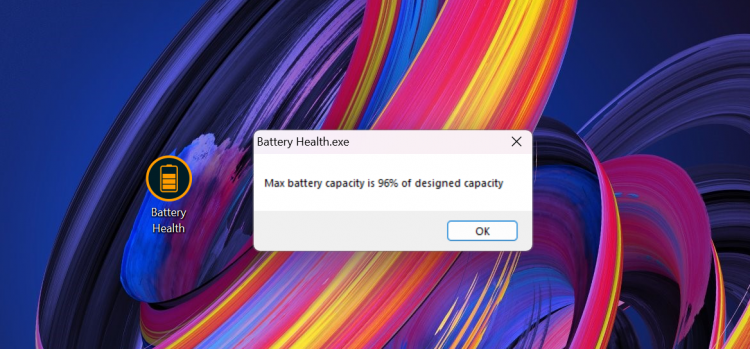
To close it just press OK. That’s as simple as it gets and no need to type or calculate anything.
Just for disclaimer: have not entered and malicious code into it so it’s clean on my end and if you don’t trust me then you can make your own little app. Not tested with Windows 10 but works alright with Windows 11.
Screenshot of the Battery Health.exe properties:
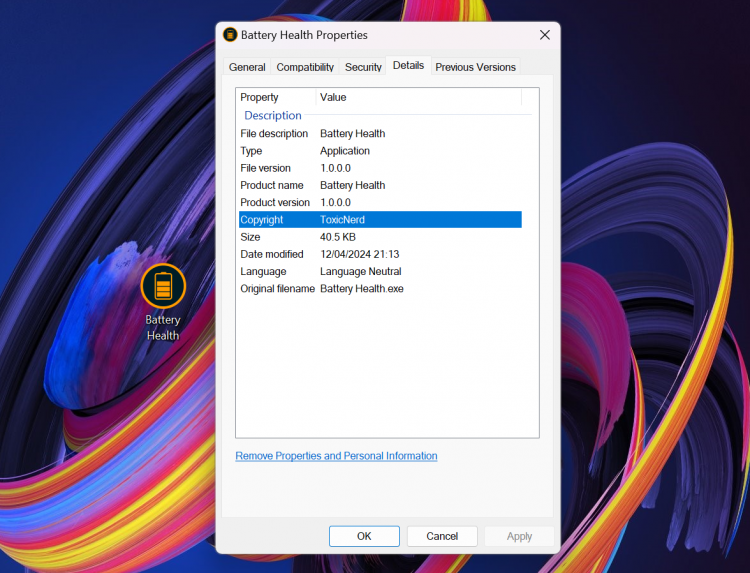
Hope this will be helpful for someone like me out there who’s just looking to make life bit easier for themselves.
Download Battery Health Check windows executable below.